
Last month, Meta released an app called Muse, and millions of regular people downloaded it. Muse isn't a chatbot you ask questions. It's an assistant that does things for you. It can send emails, book a table, fill out forms, compare prices, and buy things. Within a few weeks it was one of the most downloaded free apps in the country.
That means two things for a small business owner. First, some of your customers are about to show up at your website, your booking page, or even your phone line with an AI doing the work for them. Second, the same tool can take a pile of boring office work off your plate. Here's the thirty-second version, then the detail.
The Thirty-Second Version
Muse is Meta's personal AI assistant. It connects to a person's email, calendar, and payment info, then carries out tasks for them. Meta says it always asks for approval before it sends, posts, or spends anything. For your business, that cuts both ways. On the customer side, AI assistants are becoming a new kind of shopper, and the businesses that are easy for them to understand will get the sale. On the owner side, Muse can now plug into tools like Shopify, QuickBooks, Stripe, and Canva, so you can hand it routine jobs like weekly sales summaries and invoice reminders. The rule of thumb: make your business easy for AI to read, and start your own use of Muse with “look, don't touch” tasks.
What Muse Actually Is
Think of Muse as a personal assistant that lives in an app, on the web, and inside WhatsApp. You tell it what you want in plain English — like “find me a dentist near my office who's open Saturday and book a cleaning” — and it works through the steps on its own. It can keep working after you close the app, and it can run the same task on a schedule, like every Monday morning.
There's a free version, plus paid plans at about $20 and $100 a month that let it do more. When it buys something, it pays with a one-time card number through Stripe's Link service, so your real card number isn't handed to the store. It's available to adults in the U.S. and Canada.
My take after using it: the free version of Muse can handle most of the everyday tasks you'd want an AI assistant to do. I'd only recommend the paid plans for power users, or for people working on big automation or coding projects. Even in those cases, I'd still point you to OpenAI's Codex or Claude Code, which are built for that kind of heavy lifting.
Worth knowing: Muse wants a lot of access. To be useful, it needs to read your email and calendar, and that's a real privacy trade-off. Meta makes most of its money from advertising, and plenty of people are cautious about giving it a view into their inbox. That caution is reasonable. We'll come back to ground rules at the end.
Your Next Customer Might Be An AI
Here's the part most owners haven't heard yet. A security company called Cequence looked at traffic on its clients' websites and found Muse visiting more than half of them within two weeks of launch. In most cases, Muse didn't announce itself as an AI. To the website, it looked like a normal person using a web browser.
Muse can also place phone calls to U.S. businesses, which means the next “customer” asking about your Saturday hours could be software calling on someone's behalf.
This isn't a reason to panic. Most of the time, that AI is working for a real customer who wants to buy something from you. The question is whether your business is easy for it to work with. An AI assistant can't guess at prices that aren't listed, and it can't book an appointment through a “call us to schedule” message. If it can't find what it needs on your site, it moves on to a competitor whose site makes it easy.
Amazon Said No. Shopify Said Yes.
The two biggest names in online shopping went in opposite directions on Muse, and the split shows the choice every business now has to make.
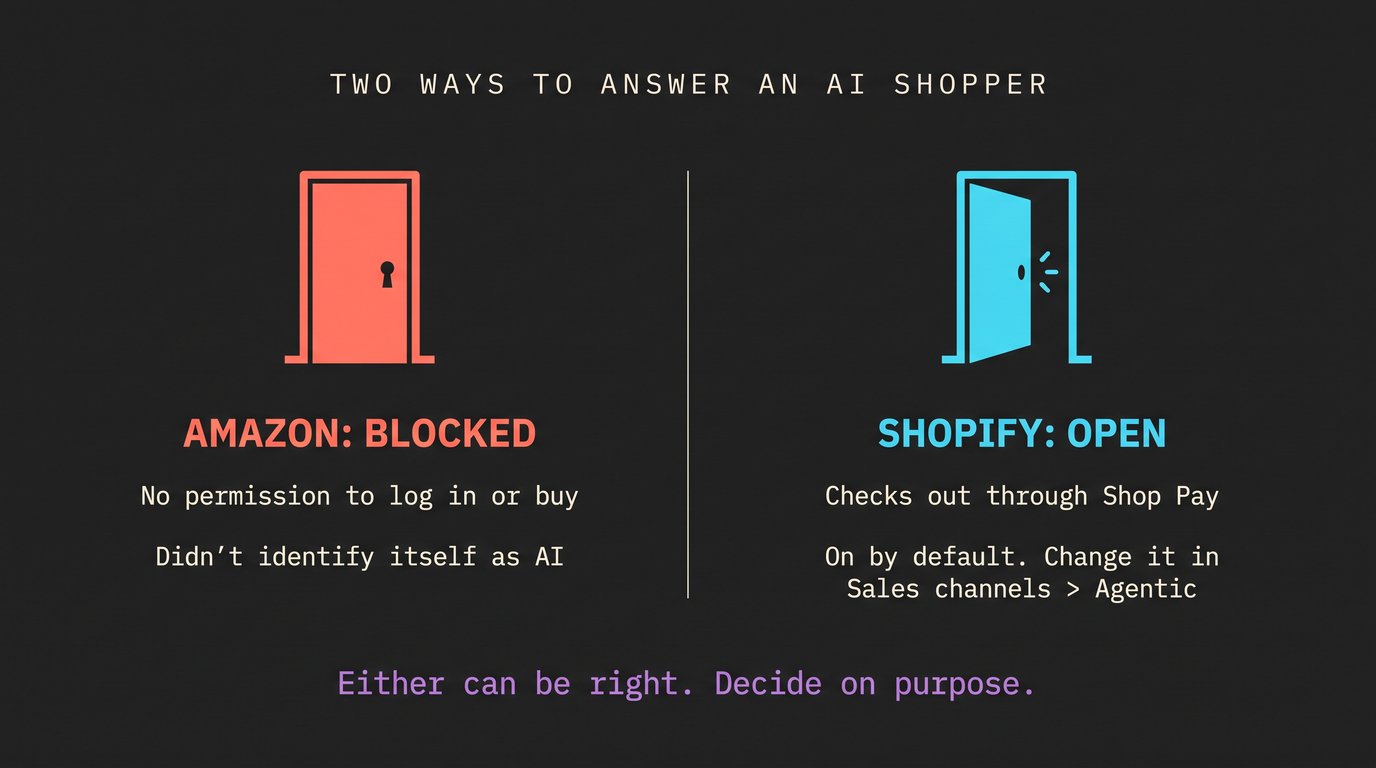
Amazon blocked Muse from its store. Its reasons: it never gave Muse permission to log into customer accounts or make purchases, and Muse wasn't identifying itself as an AI. Shoppers who send Muse to Amazon now hit a pop-up instead.
Shopify did the opposite. It partnered with Meta so Muse can browse Shopify stores and check out through Shop Pay. The order shows up in the store's system like any other sale. If you sell on Shopify, this is likely already turned on for your store by default. You can find the settings in your Shopify admin under Sales channels, then Agentic. There you can choose whether Meta can see your product catalog and whether shoppers can check out directly through Meta. Turn off direct checkout and your products can still show up, but buyers get sent to your own site to pay.
Worth knowing: when an AI buys from you, you still own the customer experience. Shipping, returns, and customer service are still your job. If an AI orders the wrong size because your product page was vague, you'll be the one handling the return.
Five Ways To Get Your Business Ready This Month
None of this needs a big budget. It's mostly about making your information clear and complete, which also happens to help your Google search results.
Put your real information on your website. Prices (or at least starting prices), hours, service area, what's included and what isn't. An AI can only work with what it can read.
Let people book and buy online. If your only option is “call to schedule,” AI assistants, and a lot of younger customers, will skip you. A simple online booking link fixes this.
Check your Shopify settings. If you sell on Shopify, go to Sales channels, then Agentic, and decide on purpose whether you want Muse checking out in your store. Either answer can be right. Just don't leave it to a default you never looked at.
Brief whoever answers your phone. Some calls will come from an AI. Have a simple rule: give out public info like hours and prices freely, but never share account details, take payments, or make changes without confirming the real customer.
Watch your logins. Cequence found that Muse could complete the security codes that banks text to their customers. If customers have accounts on your site, a successful login no longer proves a human is at the keyboard. Ask your web person whether your site flags unusual activity.
Putting Muse To Work For You
Now for the other side. In late September, Meta added business features to Muse. It can now connect to about 15 business tools, including Shopify, QuickBooks, Stripe, Klaviyo, Canva, and Slack, plus your Facebook Page, Instagram business account, and Meta ad account. Meta says nothing gets published, sent, or spent without your approval.
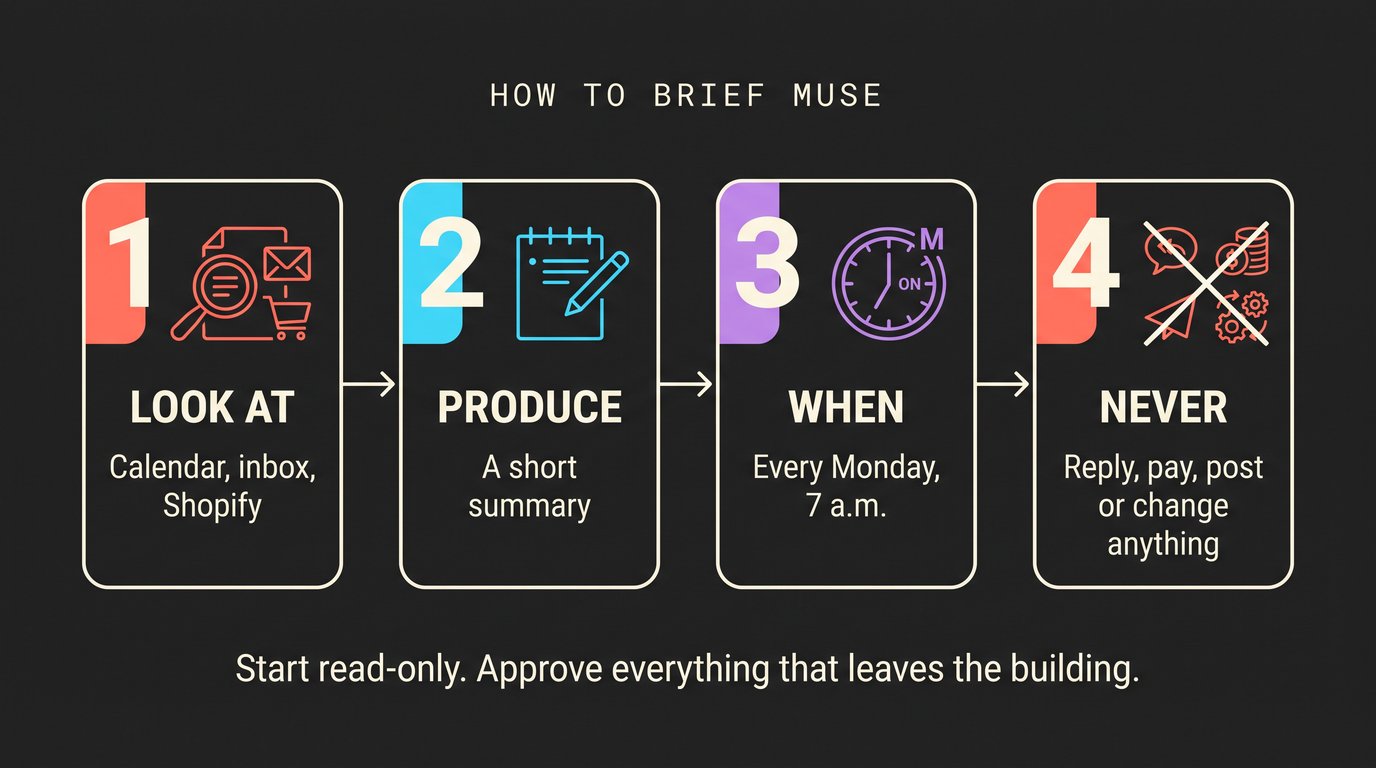
The way you “build” something in Muse is by describing it, step by step, the way you'd brief a new assistant. A good request covers four things: what to look at, what to produce, when to do it, and what it's not allowed to do. Here are five setups worth trying, starting with the safest.
The Monday morning briefing. Connect your calendar and email (read-only is fine to start). Then tell Muse: “Every Monday at 7 a.m., send me a short summary of this week's appointments, any emails from customers I haven't answered, and anything with a deadline this week. Don't reply to or move anything.” This is a great first task because Muse only reads and reports.
The bills and invoices check. With email connected: “On the 1st and 15th of each month, go through my inbox and list any bills due in the next two weeks with the amount and due date. Also list any invoices I sent that haven't been paid. Don't pay anything or send any reminders.” Once you trust the list, you can let it draft polite reminder emails for you to approve one by one.
The weekly sales snapshot. Connect Shopify, Stripe, or QuickBooks. “Every Friday at 4 p.m., tell me this week's total sales, how they compare to last week, my top five products, and any expense that looks unusual compared to the past three months.” In five minutes you get the kind of summary a bookkeeper might send.
The ad check-up. Connect your Meta ad account. “Every Wednesday, tell me which of my ads got the most clicks per dollar and which ones are wasting money. Suggest changes, but don't change budgets or pause anything.” Meta hasn't said exactly how much control Muse has over ad accounts, so keep it in “suggest only” mode.
The social post drafter. Connect Canva and your Instagram or Facebook Page. “Each Monday, draft three posts for this week based on our newest products and any upcoming holidays. Use our brand colors in Canva. Save them as drafts for my approval and don't publish anything.” You still choose what goes live, but the blank-page problem is gone.
Notice the pattern. Every setup says what Muse can't do. That one sentence is the most important part of the request.
Ground Rules Before You Connect Anything
Start read-only. Most connections let you choose between “can read” and “can make changes.” Give Muse read access first and only upgrade once it's earned your trust.
Keep business and personal separate. If you can, connect a business email and business accounts instead of mixing in your personal life.
Keep a human on anything that leaves the building. Customer emails, social posts, payments, and ad spending should always wait for your OK. Muse is built to ask for approval on those. Leave that setting alone.
Check the activity log weekly. Muse keeps a record of what it did and what it plans to do. Five minutes of skimming tells you whether it's doing what you asked.
And be honest with yourself about privacy. If the idea of Meta reading your business inbox makes you uneasy, you don't have to use Muse to benefit from this shift. The “get ready” steps above help no matter which AI your customers use, and Muse isn't the only assistant heading in this direction.
The Bottom Line
Muse is the first AI assistant that regular consumers have adopted in big numbers, and it won't be the last. The businesses that do well with it won't be the ones with the fanciest tech. They'll be the ones that are easy to understand: clear prices, simple booking, honest product pages. Get those right and you're ready for whatever assistant your customers use next. Then, if it fits, let Muse take the Monday paperwork off your desk.
Not sure whether your website is ready for AI shoppers, or which of these Muse setups makes sense for your business? That's what we do at Arperture. Book a free 30-minute call below and we'll walk through it with you.